How to Disable Windows Defender Permanently: A Step-by-Step Guide
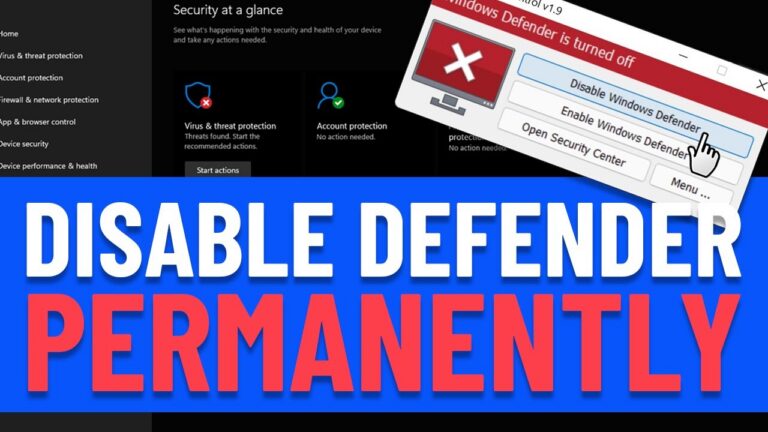
Are you constantly fighting with Windows Defender? If you’ve ever experienced Windows Defender blocking necessary files, slowing down your system, or nagging you with constant security alerts, you know how frustrating it can be. In this guide, we will walk you through exactly how to disable Windows Defender permanently without making risky registry edits. By the end of this tutorial, you will have bypassed the default security provider and replaced it with a custom solution, putting you back in full control of your PC’s performance and file management.
Why Disable Windows Defender? Understanding the Need for Control
While Windows Security is designed for robust threat prevention, sometimes its overzealous protection interferes with legitimate software, development tools, or performance tuning. This guide focuses on providing a legitimate, informational alternative for users who need to stop Windows Defender from deleting files or interfering with critical processes. We aim to help you enhance your overall web protection strategy by integrating a tool that allows for greater customization.
Embedding the Tutorial Video
Step 1: Preparing System Settings to Disable Real-Time Protection
Before we introduce the tool that will permanently disable Windows Defender, we must temporarily disable its active protections. This prevents Windows from immediately blocking the tool we are about to use. This is a crucial preliminary step for anyone looking to turn off Windows Defender.
Accessing Windows Security Management
- Open your Windows Settings menu.
- Navigate to Privacy & Security.
- Select Windows Security, then open Virus & threat protection.
- Click on Manage settings under ‘Virus & threat protection settings.’
Temporarily Disabling Core Protections
In the Manage settings section, you need to toggle off the following items. This ensures a smooth process when moving forward with the disable antivirus Windows 11 method:
- Turn off Real-time protection.
- Scroll down and turn off Tamper protection.
Step 2: Downloading and Preparing the DefendNot Tool
We will be using a utility called DefendNot, found on GitHub. This utility signals to Windows that another antivirus is present, prompting the system to gracefully allow the security takeover. This is a cleaner alternative to performing complex Windows Defender registry tweak alternatives.
Where to Find the Tool
The official repository link for the tool is provided below. Always ensure you download files from trusted sources to maintain your system’s integrity:
Note: For technical details on how this tool works, you can read the repository documentation.
Identifying Your System Architecture (32-bit vs ARM)
Before downloading the correct file, you must check your processor architecture. This ensures compatibility, whether you are running a standard x64 system or an ARM based processor.
- Go to the Start Menu and search for About your PC.
- Check the specifications listed. If it explicitly states ‘ARM-based processor,’ download the ARM64 zip file.
- Otherwise, download the standard 64-bit version.
Once downloaded, extract the contents of the zip file. For ease of use, we recommend renaming the extracted folder to something simple, like disable defender.
Step 3: Executing the Bypass to Permanently Disable Windows Defender
This final step is critical for ensuring the change persists even after system restarts. If you want to permanently disable Windows Defender Windows 11 or 10, follow these placement instructions precisely.
Crucial Placement: The C Drive
Copy the renamed folder (e.g., disable defender) and paste it directly into the root of your C drive. Placing it anywhere else may cause the script to fail or revert after a reboot. If you delete this file later, the protection will re-enable.
Running the Executable
- Navigate to the folder you pasted in the C drive.
- Locate and double-click the main
.exefile within that folder. - The process will execute quickly.
Once finished, you can verify the success. Go back to the Windows Security window. You should now see a message indicating that the security features are managed by ‘DN’ or the tool’s designation, confirming Windows Defender has been successfully bypassed. This resolves common issues related to being unable to remove virus from PC or dealing with unwanted security interruptions.
How to Re-enable Windows Defender Protection (Undoing the Bypass)
If you decide later that you need to revert the changes and enable back virus protection, follow these steps to restore default settings:
Using the Command Prompt in the Tool Folder
- Navigate back to the tool folder located in your C drive (e.g.,
C:\disable defender). - Click on the address bar in File Explorer and type
cmd, then press Enter. This opens the Command Prompt directly in that directory. - Copy the exact name of the executable file (e.g.,
defendnot.exe). - In the Command Prompt, type the file name followed by
app -d(e.g.,defendnot.exe app -d) and press Enter.
After running this command, the protection is restored. You may still need to manually go to Windows Security > Home and click Turn on to fully reactivate virus and threat protection, as shown in the tutorial, confirming that threat prevention is back online.
Important Security Warning and FAQs
A necessary disclaimer: Disabling your primary antivirus leaves your device vulnerable. Only use this method if you fully understand the risks and have an alternative, reliable security solution in place, or if you are performing development work where Defender interference is unavoidable. This method is for those who truly need to take control of Windows Security.
Frequently Asked Questions (FAQs)
- Will this method work on Windows 10 and Windows 11? Yes, the tool is designed to work across recent Windows versions, including resolving issues related to disable windows security windows 10.
- Is this considered a registry tweak? No, this method uses a dedicated application that interfaces with Windows security providers, avoiding manual, complex registry edits that carry higher risks.
- What if Windows Defender turns back on automatically? If it turns on automatically, it is likely because the tool folder was moved or deleted from the C drive root, or the re-enable command was not run.
- Can this help me fix blocked files during installation? If Windows Defender was the cause, yes, this bypass allows you to install software without the security suite interfering with the setup files.
Conclusion: Regaining Control Over Your PC Performance
We have successfully shown you how to disable Windows Defender using a straightforward, non-registry method. Whether you need enhanced performance or are troubleshooting software conflicts, you now have the power to manage your PC’s security landscape effectively. Remember to check the timestamps and utilize the provided link if you need to reverse the process and enable back virus protection. If you found this tutorial helpful for resolving issues like stop Windows Defender from deleting files, please give this guide a thumbs up and subscribe for more essential tech tutorials!
Support & Further Resources
Thank you for watching/reading. Here are some helpful links:
- DefendNot GitHub Repo: https://github.com/es3n1n/defendnot
- Support the Channel: https://buymeacoffee.com/techfury
- Visit Our Website: https://techfuryhq.com
- Subscribe for More Tips: https://www.youtube.com/@techfurytips?sub_confirmation=1