Crafting the Ultimate Where Winds Meet Desktop Theme for Windows 11
Are you ready to elevate your PC aesthetic? Windows 11 Customization offers endless possibilities, but achieving a truly cohesive and stunning look requires the right tools and inspiration. Today, we’re diving deep into creating the breathtaking Where Winds Meet Desktop Theme, inspired by the visually rich Wuxia RPG. This setup combines a striking live wallpaper, functional Rainmeter widgets, and a sleek, transparent taskbar for the ultimate, modern computing environment. If you’ve been searching for the best Windows themes or how to get an aesthetic desktop setup, this comprehensive guide is for you!
This transformation utilizes several powerful, free tools, turning your standard desktop into a customized masterpiece. We’ll walk you through every step, ensuring you can replicate this look seamlessly.
Video Guide Preview & Setup Resources
Before we begin the step-by-step customization process, here is the full video tutorial for visual reference:
To follow along, ensure you have access to the necessary components. These external links are crucial for achieving the Where Winds Meet Desktop look:
- Custom Theme Files (Including Wallpaper & Skins): Download Custom Theme Files
- Rainmeter: Official Rainmeter Website (For essential widgets)
- Nexus Dock: Winstep Nexus Dock (For the Mac Dock for Windows 11 feel)
Phase 1: Preparing Windows 11 for Customization
Before applying the major visual changes, we need to clean up the default Windows interface elements to maximize screen real estate and prepare for a transparent taskbar.
Disabling Default Taskbar Items
Start by removing unnecessary clutter from your taskbar to achieve a minimalist look:
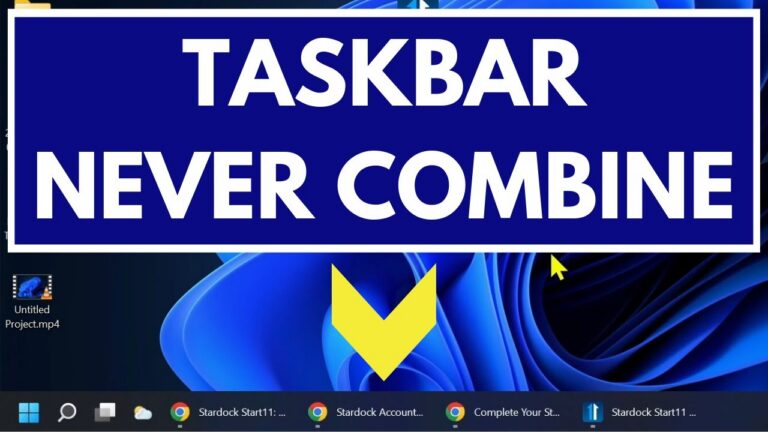
- Right-click the Taskbar and select Taskbar settings.
- Go to Taskbar behaviors.
- Disable items like Search, Task View, Widgets, and Chat. This primes the taskbar for customization.
Achieving a Perfect Transparent Taskbar (TranslucentTB)
A key feature of the Where Winds Meet Desktop Theme is the completely clear taskbar. We use TranslucentTB for this effect.
- Download and install TranslucentTB (Often available via the Microsoft Store or their GitHub).
- Once running, right-click the TranslucentTB icon in the system tray.
- Select Clear or Transparent to make the taskbar fully invisible, creating a seamless transition to your new live wallpaper.
Tip: For users preferring RoundedTB for cleaner edges, you can explore that option, but TranslucentTB is required for true transparency as shown in the video preview.
Phase 2: Installing Rainmeter Widgets & Skins
Rainmeter is the backbone of advanced Windows 11 Customization, allowing us to display dynamic information beautifully. We will be using specific skins provided in the download link.
Rainmeter Widgets Installation & Setup
- Ensure Rainmeter is installed from the official site.
- Extract the provided theme files ZIP into your Rainmeter Skins folder (usually located in Documents\Rainmeter\Skins).
- Open the Rainmeter application, refresh the layout, and find the new Where Winds Meet skins in the left pane.
- Load the desired widgets (e.g., weather, clock, system monitors). Drag and drop them onto your desktop.
Position these widgets strategically to complement your live wallpaper without obscuring key areas. This step is crucial for an Aesthetic Desktop Setup.
Phase 3: Applying the Iconic Live Wallpaper
The centerpiece of this customization is the dynamic Where Winds Meet Live Wallpaper. Since Windows does not natively support video wallpapers, we rely on Lively Wallpaper.
Setting Up the Live Wallpaper with Lively Wallpaper
- Install Lively Wallpaper (search for it online or use the link provided in the resources section).
- Open Lively Wallpaper and navigate to the import section.
- Select the Where Winds Meet video file located within the provided custom theme files folder.
- Apply the wallpaper. You will now have the stunning Wuxia scenery moving gently across your screen.
This step breathes life into your setup, making it one of the most visually appealing Windows 12 concepts you can build today (even on Windows 11!).
Phase 4: Implementing the macOS Dock for Windows 11 Effect
To complete the modern, clean look, we replace the standard taskbar icons with a stylized application dock, similar to a macOS dock.
Custom Nexus Dock Application Launcher Setup
We use Winstep Nexus Dock for this functionality. While it can mimic a Mac dock, you can configure it to fit the theme perfectly.
- Install Nexus Dock.
- Access the Nexus Dock settings panel.
- Configure the dock position (usually bottom center).
- Adjust the size, magnification, and icon set. You may want to apply custom icons from the theme pack for maximum cohesion.
- Crucially, remove all default shortcuts and only add the applications you use most often, such as your browser, file explorer, and games.
This dock integration is fantastic for productivity, keeping essential apps accessible without the clutter of the traditional taskbar icons.
Final Touch: Hiding Desktop Icons
For the absolute cleanest look, hide all remaining desktop icons. This is often the final step in achieving a true, minimalist PC Theme.
- Right-click on an empty space on your desktop.
- Go to View.
- Uncheck Show desktop icons.
Your Where Winds Meet Desktop setup is now complete! You have a breathtaking live wallpaper, clean Rainmeter widgets, and a sleek dock.
Troubleshooting & Reversing Customizations
If you ever need to revert to your standard Windows 11 setup, the process is straightforward:
Uninstalling / Removing All Customizations
- Lively Wallpaper: Stop the wallpaper playback or uninstall the application.
- Rainmeter: Close Rainmeter from the system tray, or uninstall the specific skins/program.
- Nexus Dock: Close the dock or uninstall the application.
- Taskbar: Re-enable default icons via Taskbar Settings and uninstall TranslucentTB.
This ensures a clean slate for future customization experiments, whether you stick with this theme or try out other software like RoundedTB for Windows 11.
Conclusion: Mastering Windows 11 Customization
Transforming your PC into a custom masterpiece is incredibly rewarding. By combining Lively Wallpaper, Rainmeter, and Nexus Dock, we successfully created a stunning Where Winds Meet Desktop Theme for Windows 11. This setup demonstrates how powerful PC customization can be, moving beyond default skins into a truly personalized operating system. Explore more aesthetic desktop setups and tips by subscribing to the channel!
If you enjoyed this deep dive into Windows 11 Customization, consider supporting the channel: Buy Me A Coffee.
Frequently Asked Questions about Customizing Windows
1. Is using Rainmeter safe for my PC?
Yes, Rainmeter is a trusted and widely used application for skinning Windows. Always download the main program from the official site (rainmeter.net) and exercise caution when downloading third-party skins, though the skins provided here are verified.
2. Can I run a live wallpaper on low-end PCs?
Live wallpapers, especially those powered by Lively Wallpaper, do consume some resources. If you have a very low-spec PC, you might notice a slight performance dip. For gaming or intense tasks, consider setting TranslucentTB to completely opaque or using a static wallpaper instead.
3. How do I get the macOS dock look specifically?
The Nexus Dock (Winstep Nexus) is excellent for this. After installation, ensure you configure its appearance settings to mimic the floating, magnified look often associated with the macOS dock on windows 11.
4. What is the difference between TranslucentTB and RoundedTB?
TranslucentTB primarily focuses on taskbar transparency (making it clear, blurred, or opaque). RoundedTB focuses on changing the shape of the taskbar, typically rounding the corners or giving it a floating appearance. Both can often be used together, though they serve slightly different visual goals in Windows 11 Customization.